


.webp)
Opening now...


You’ll need to use a desktop browser to set up your Streak account. You can install Streak now and finish setup on desktop later.
To get started with Chrome, install Streak from the Chrome Web Store on your desktop. Share your email and we'll send you the install link directly.
To get started with Safari, install Streak from the Mac App store on your desktop. Share your email and we'll send you the install link directly.
To get started with Edge, install Streak from the Edge Add-ons store on your desktop. Share your email and we'll send you the install link directly.


If you’ve installed Streak and completed onboarding on desktop, you can install the Streak app to access your pipelines on mobile.


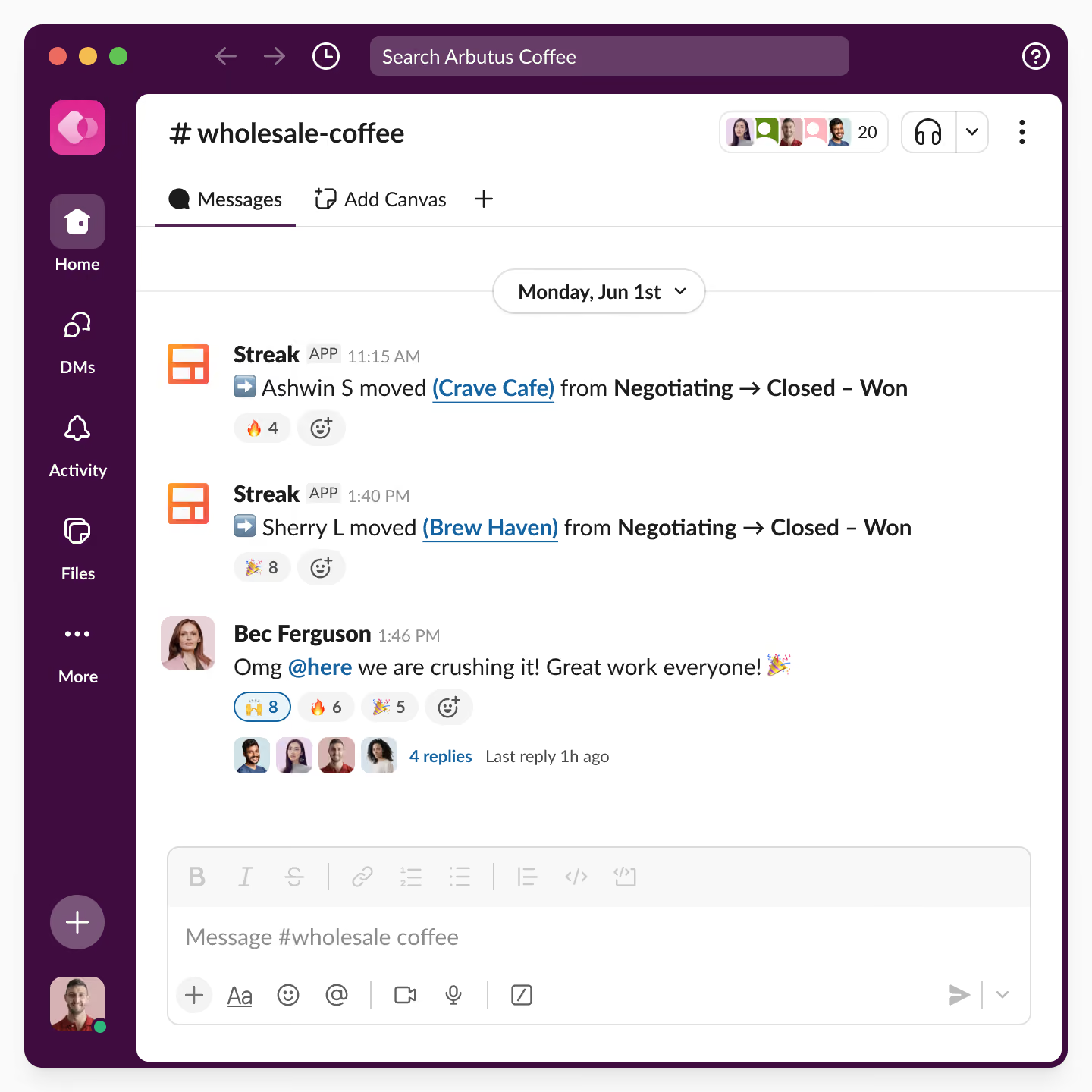
Streak works with Slack in two ways, and you can use either one on its own.
The Streak for Slack app is free on any plan.
Install it once from the Slack Marketplace to send pipeline notifications to a channel, search and update boxes with slash commands, and send Slack messages into a deal record.
Custom alerts are built with Streak automations, included on Pro+ and Enterprise. No app install required. You choose the trigger and write the message yourself, including AI insights about a deal.
Learn more about Streak automations ->
Streak sends a message to your Slack channel when activity happens in a pipeline you've configured notifications for. Your team sees deals move and gets the most important updates without opening the CRM, and without needing a Streak seat.
Your team can be notified about the follow events in your CRM:

When you need something more specific, a Streak automation can post a message you write to any public Slack channel — you choose both the trigger and what the message says.
Use Streak automations to send a Slack message when:
This is how most teams build alerts that actually matter: a stalled-deal warning after two weeks of no movement, a heads-up when a proposal recipient opens the email, a Monday morning summary of everything sitting in one stage.
CRM automations are available on Pro+ and Enterprise plans.
Learn more about Streak automations →
Streak's Ask AI about a box automation step answers a question you write, using the deal's emails, fields, comments, tasks, meeting notes, and call logs. Publish the answer to Slack and the alert arrives with context attached — a stage change tells your team something happened, this tells them what to do about it.
Teams get AI insights about deals in Slack when:
The question runs the same way every time the trigger fires, so the format stays consistent and the channel stays readable. To avoid creating noise in Slack, these work best on triggers that fire selectively — a late-stage move, a button press, or a schedule — rather than on every new box.
AI action steps require Pro+ or Enterprise and use AI credits each time they run.
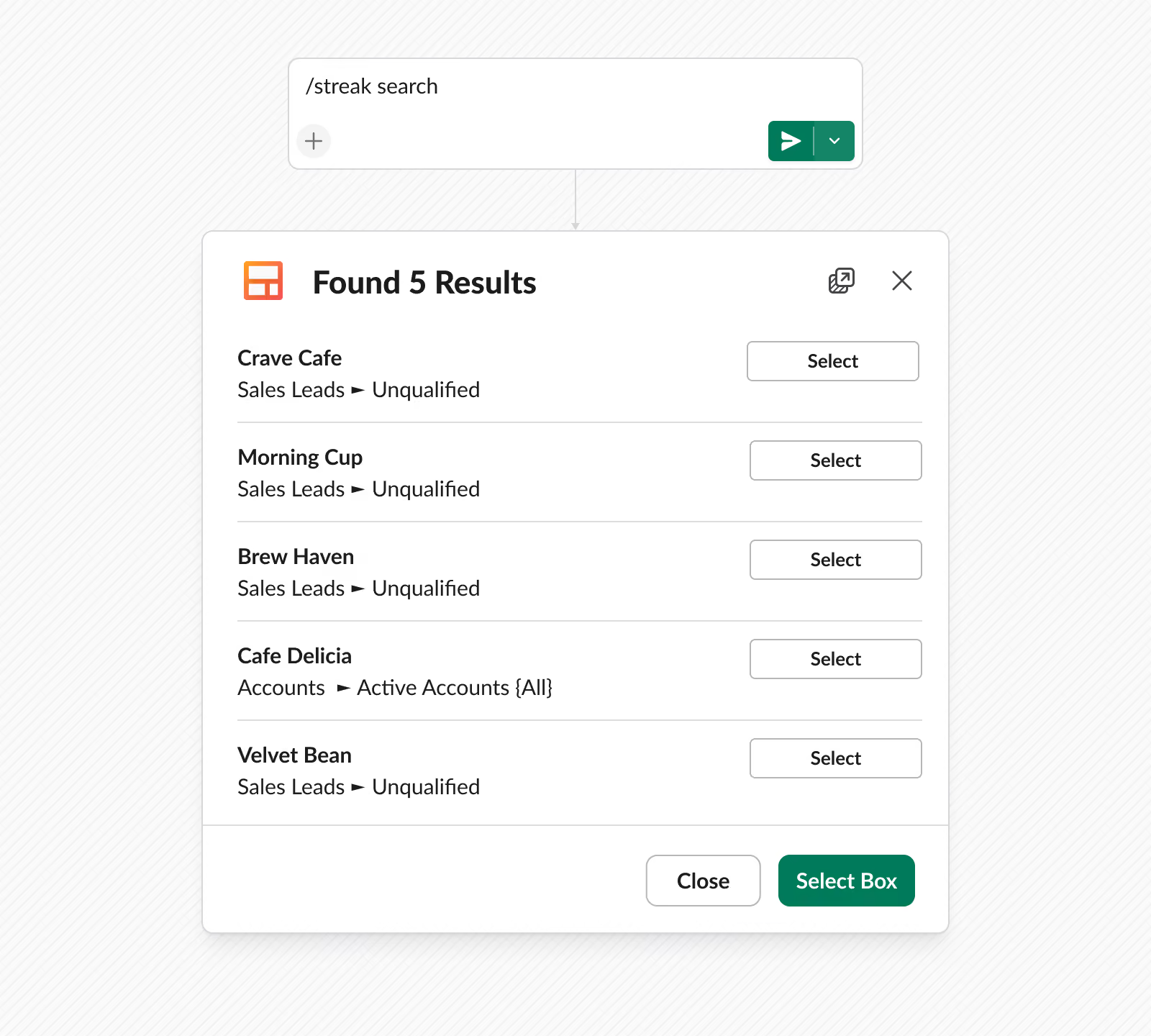
Type /streak search [box name] to pull any box into the conversation. The results modal opens with that deal's current state, and changes you make save straight to Streak.
From the modal you can:
Useful when someone asks about a deal mid-thread and the answer is two clicks away instead of a tab switch. Run /streak help for the full list of commands.
Decisions get made in Slack threads and then disappear. Instead of copying them into the CRM later, send the message to the deal it belongs to.


/streak notifications on [pipeline name] in the channel you want updates inYes. The Streak for Slack app installs free on any Streak plan. Sending custom Slack messages from a Streak automation requires Pro+ or Enterprise plans in Streak.
No. Streak automations connect to Slack independently. You can send custom alerts to a public channel without installing the Slack app, though you'll need Pro+ or Enterprise.
Six: stage changes, created boxes, created meeting notes, created call logs, created comments, and due tasks. Each one is enabled per pipeline.
No. The app works in channels only — it can't be added to a DM or group DM.
Yes. After finding a box with /streak search, you can change its stage, reassign it, edit pipeline fields, and schedule a follow-up. Changes save to Streak.
Yes. Use the box hasn't moved trigger in a Streak automation to post an alert after a period of inactivity you define.
No. Anyone in the Slack channel can see them.
Can't find the answer you're looking for? Feel free to chat with our friendly team!


