


.webp)
Opening now...


You’ll need to use a desktop browser to set up your Streak account. You can install Streak now and finish setup on desktop later.
To get started with Chrome, install Streak from the Chrome Web Store on your desktop. Share your email and we'll send you the install link directly.
To get started with Safari, install Streak from the Mac App store on your desktop. Share your email and we'll send you the install link directly.
To get started with Edge, install Streak from the Edge Add-ons store on your desktop. Share your email and we'll send you the install link directly.
If you’ve installed Streak and completed onboarding on desktop, you can install the Streak app to access your pipelines on mobile.


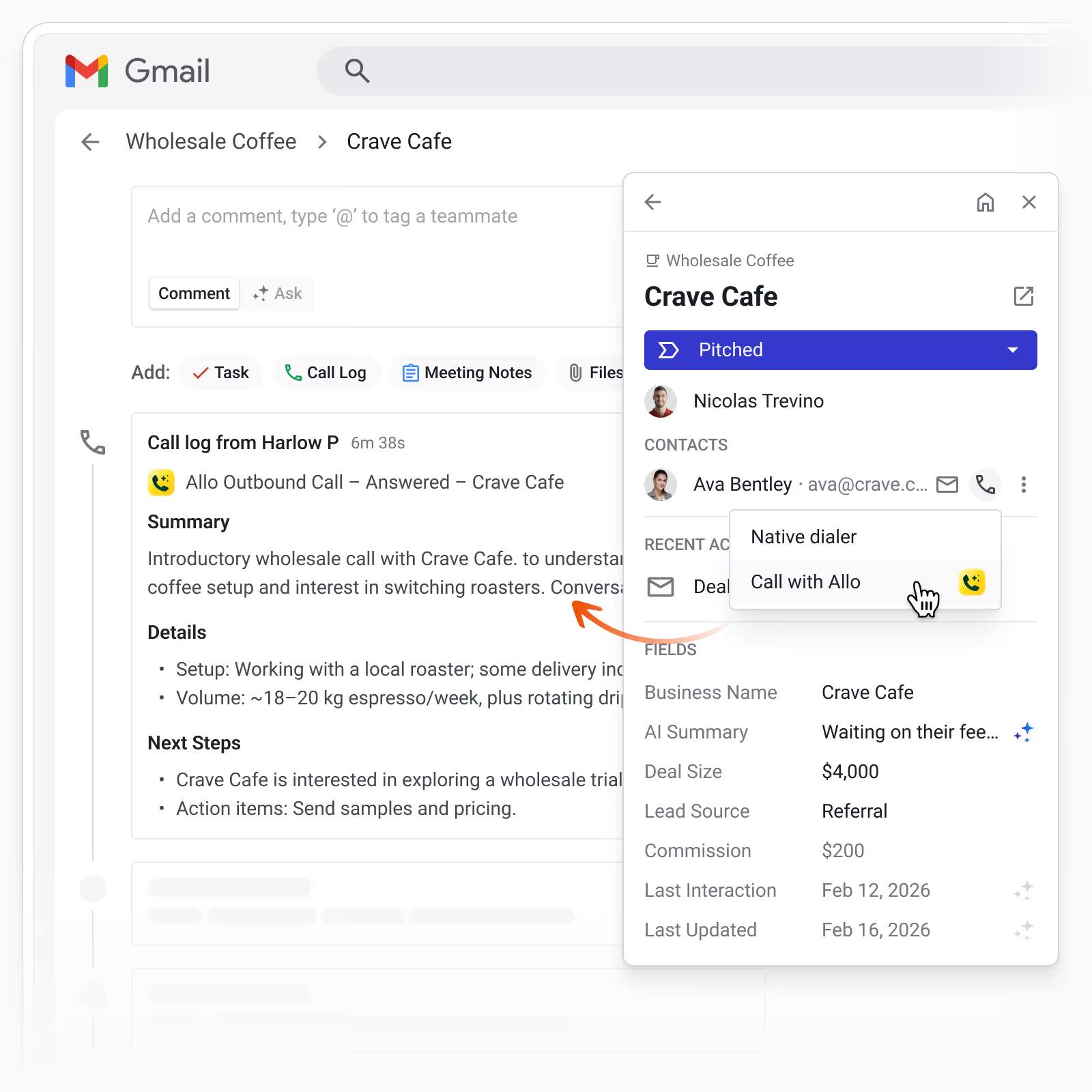
Streak integrates with Allo, an AI phone system that works on desktop and mobile.
After each call, Allo posts a recording, transcript, AI-generated summary, and call metadata to the box timeline in Streak. That data also surfaces in the CRM sidebar, pipeline view, and Streak's AI features.
With Allo connected to Streak, you can manage calls and call history directly from your Gmail inbox.
Integrate Streak with Allo in minutes.
You must have an active Allo Business plan subscription and a Streak Pro+ or Enterprise plan to integrate Allo with your Streak account.
No code required. Full setup instructions →
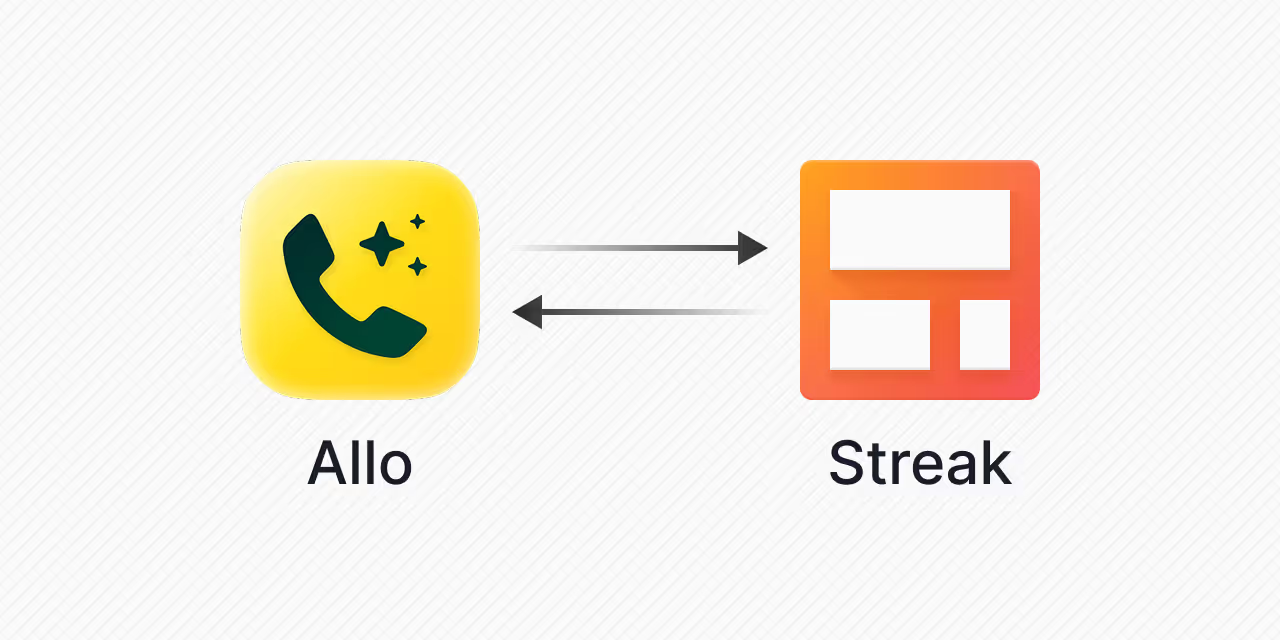
The Allo integration creates a two-way sync of your information between Streak and Allo.
Once connected, your Streak contacts sync to Allo. Contacts are matched by email and phone number. Sync is one-way: Streak to Allo.
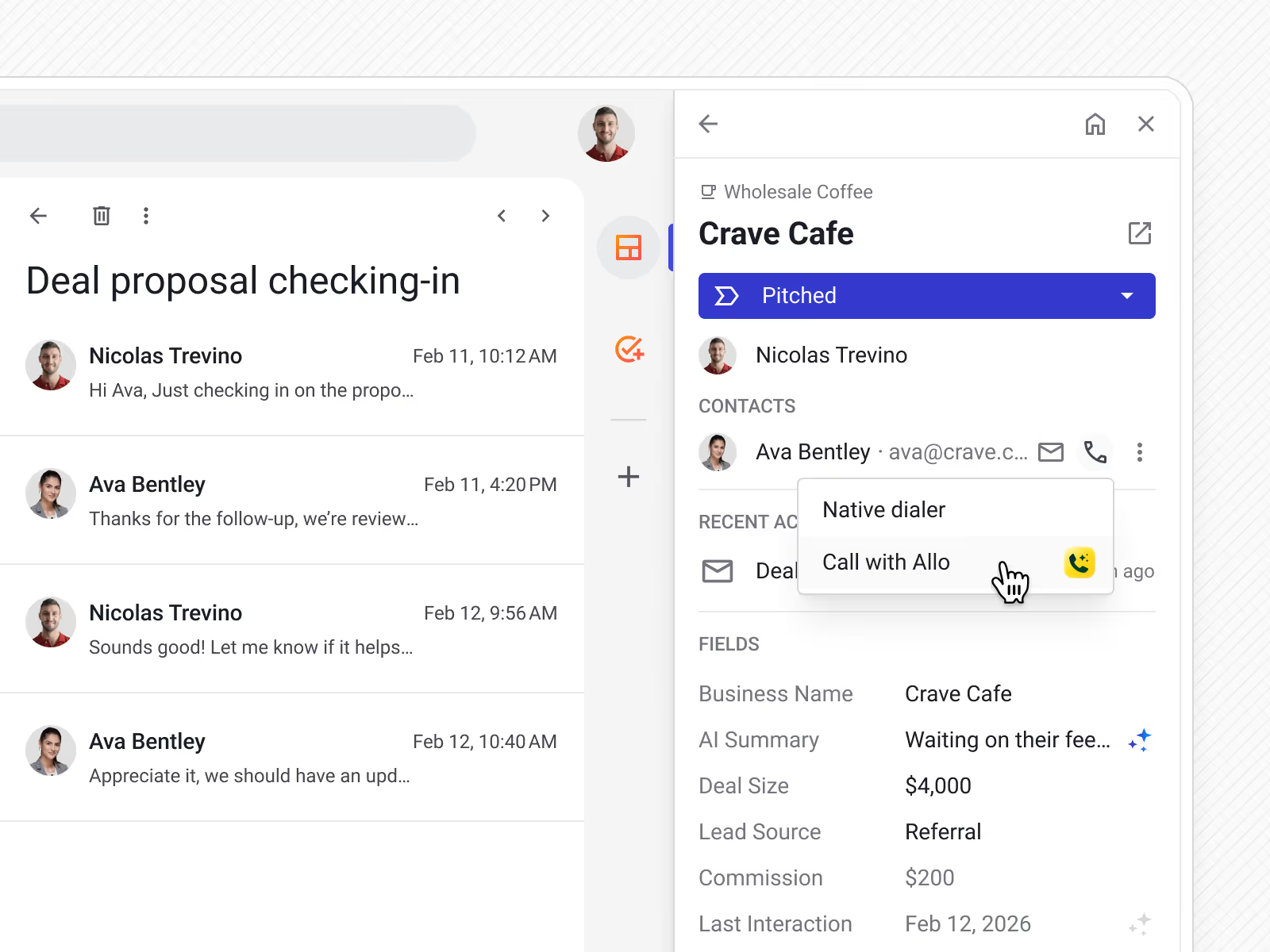
Click the phone icon next to any contact in a box, the CRM sidebar, or your contact list. Choose "Call with Allo" and the call opens in the Allo app.
When the call ends, Allo creates a call log in the box timeline in Streak — no switching tabs, no manual notes.
Send text messages through Allo and the full conversation thread is logged to the box timeline in Streak. Each contact gets a dedicated conversation note that updates as messages are sent and received, so you have a complete record of every text exchange alongside your calls and emails.
Each call log includes:
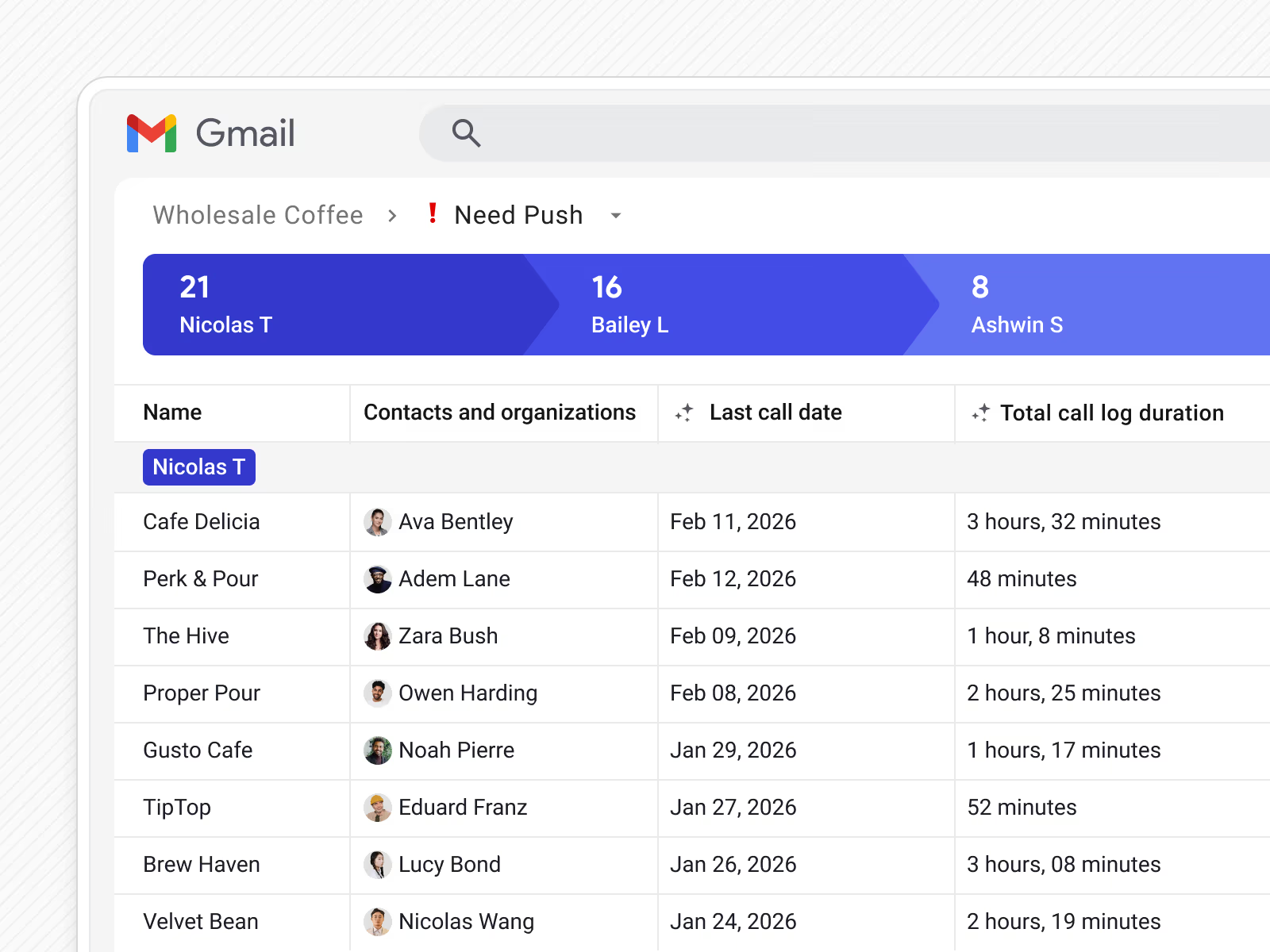
Call logs appear in the box timeline, the CRM sidebar in Gmail, and magic columns in your pipeline view.
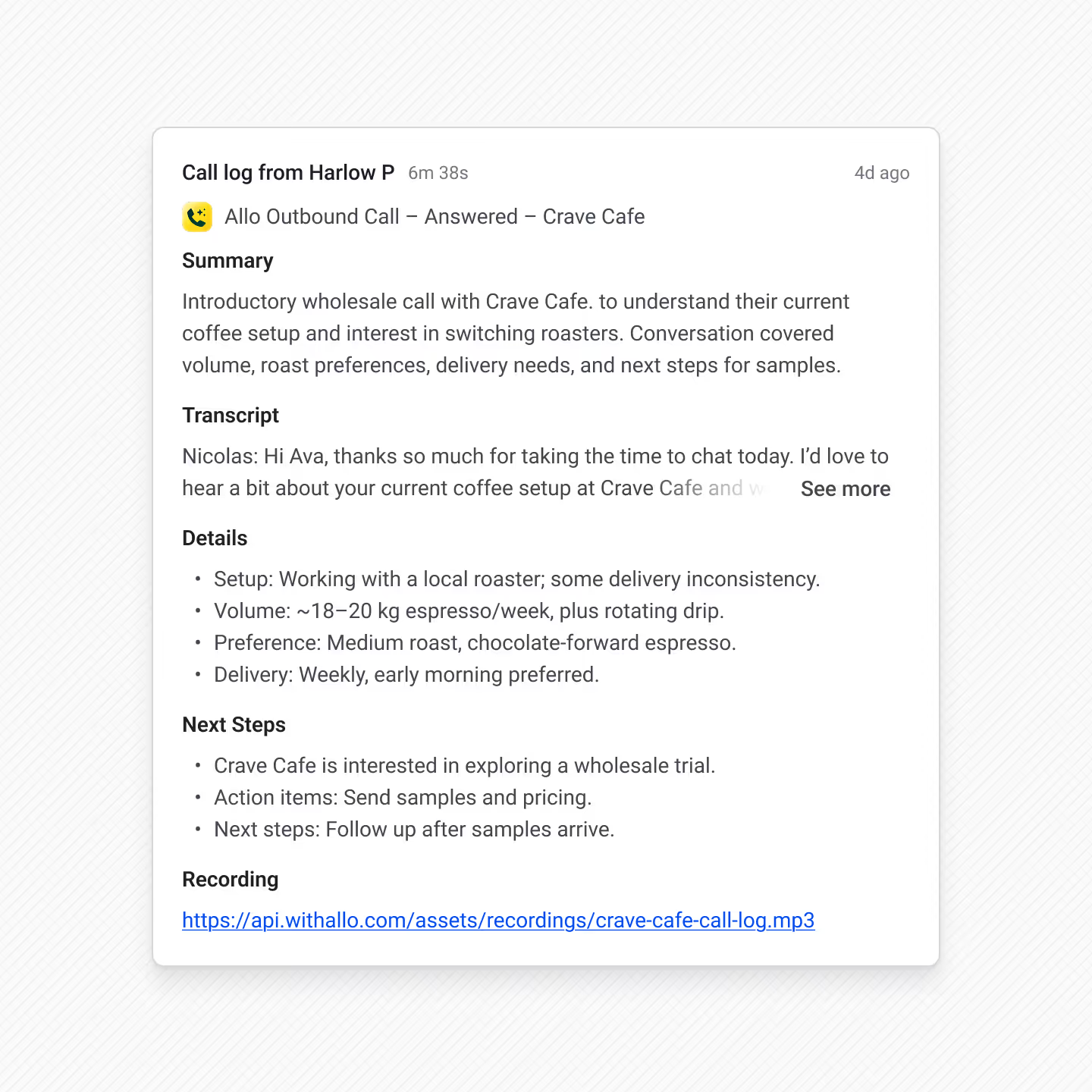
Detailed call logs with transcripts and recordings feed valuable information to Streak AI that you can use to gain more insights about each deal.
Streak AI considers call history alongside emails and pipeline updates when generating deal summaries. Open a deal and see the current state, including what was discussed on recent calls.
Ask questions like "What did we discuss on the last call?" or "When did we send the contract?" Streak scans call transcripts and surfaces answers in context.
Use AI Autofill to pull data from call transcripts directly into your pipeline fields. You can create custom prompts that tell Streak what to look for — specific terms, outcomes, or signals — so fields stay current without manual updates.
Magic columns let you sort and filter deals by call activity — useful for spotting deals with no outreach yet, identifying high-touch accounts, or tracking follow-up timing by stage.
Yes. Streak has a native integration with Allo, an AI phone system. Once connected, you can call contacts directly from Gmail and every call is automatically logged to the right deal in Streak.
It connects your Streak CRM with the Allo dialer. Contacts sync from Streak to Allo automatically, calls are made with one click from Gmail, and each call is logged to the box timeline with a recording, transcript, AI summary, and metadata like duration and call direction.
Each call log includes a full transcript, an AI-generated summary with key points and follow-up actions, call direction, duration, timestamp, a link to the recording, and missed call notifications. Logs appear in the box timeline, CRM sidebar, and pipeline magic columns.
Generate a Streak API key in Streak Home → Integrations & Automation → Custom Integrations. Then open Allo, go to Settings → Integrations, find Streak, paste the key, and tap Save and Connect. No code required.
You can click to call from any box, the CRM sidebar in Gmail, or your Streak contact list. The call opens directly in the Allo app on desktop or mobile.
Yes. Magic columns let you add call data to your pipeline view and filter or sort deals by last call date, total call count, or total call duration.
Yes. Streak AI deal summaries include call history alongside emails and pipeline updates. You can also use AI Q&A to ask questions about specific calls, and AI Autofill to pull data from transcripts into pipeline fields using custom prompts.
The Allo integration requires a Streak Pro+ or Enterprise plan since these plan types include integrations. You will also need an active Allo subscription to use the integration.
Yes. SMS messages sent and received through Allo are logged to the box timeline in Streak as a conversation note. Each contact gets one note that updates chronologically, so the full thread is visible in one place alongside call logs and emails.
Can't find the answer you're looking for? Feel free to chat with our friendly team!


