







.webp)
Opening now...

You’ll need to use a desktop browser to set up your Streak account. You can install Streak now and finish setup on desktop later.
To get started with Chrome, install Streak from the Chrome Web Store on your desktop. Share your email and we'll send you the install link directly.
To get started with Safari, install Streak from the Mac App store on your desktop. Share your email and we'll send you the install link directly.
To get started with Edge, install Streak from the Edge Add-ons store on your desktop. Share your email and we'll send you the install link directly.
If you’ve installed Streak and completed onboarding on desktop, you can install the Streak app to access your pipelines on mobile.


{{cta-box-no-btn}}
The Allo integration allows Streak users to make calls with an AI‑powered dialer from Gmail and automatically log call activity to the correct deal in your CRM.
Every call includes a recording, timestamp, direction, transcripts, and an AI‑generated summary that highlights key points, decisions, and follow‑up actions.
With Allo, your call history stays attached to the deal automatically, giving you clearer context before follow‑ups and eliminating the need to dig through a separate dialer tool or rely on handwritten notes.
Our integration seamlessly feeds your calls and AI notes directly into Streak, keeping your pipelines pristine. It allows Streak to do what it does best: manage your deals, while you focus on closing them."
— Jérémy Goillot, CEO at Allo The Mobile-First Company
Once the integration is set up, Streak contacts sync to Allo so you can start calling immediately.
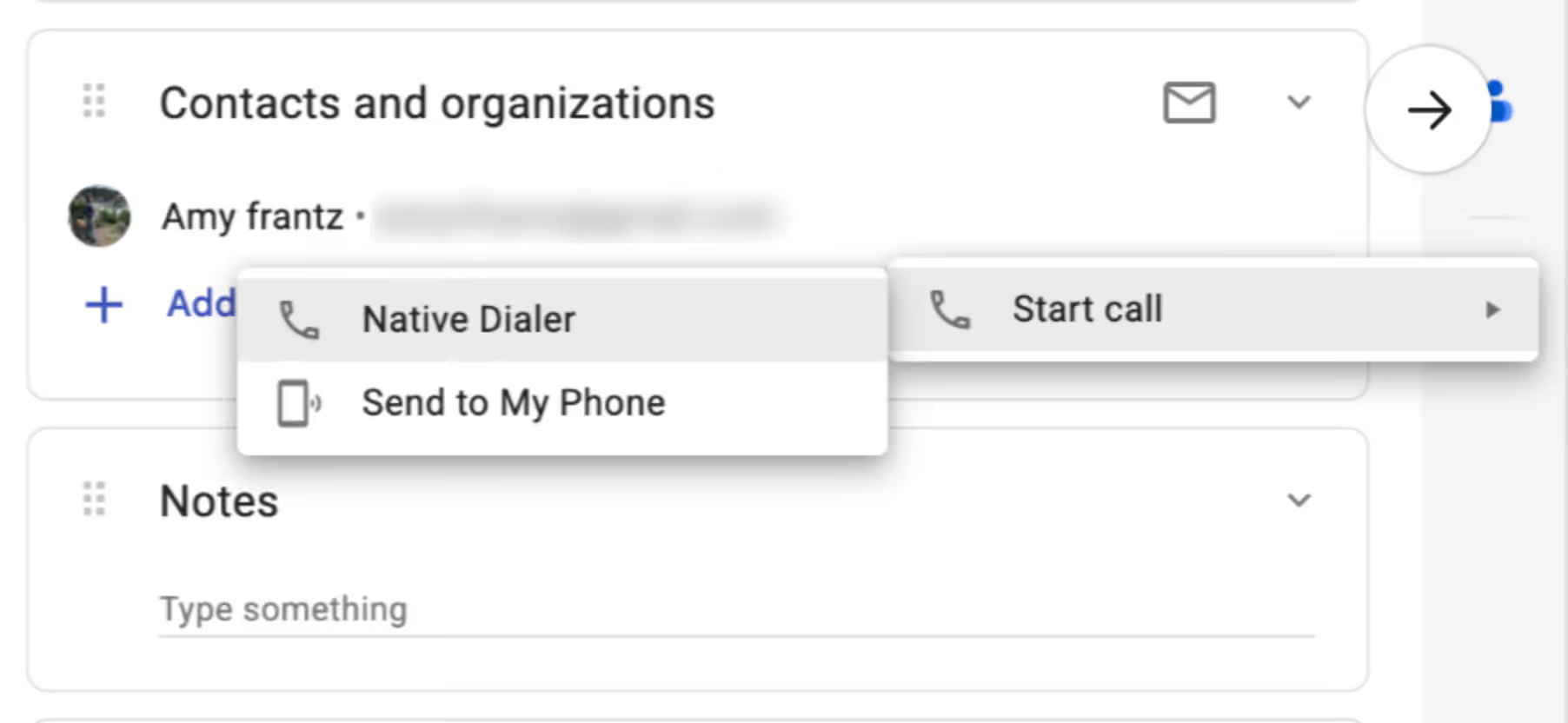
You can click to call your contacts in Streak using the Allo dialer option in your boxes, the CRM sidebar, contact list, and more. Receive inbound calls using the Allo app.
After the call ends, Allo automatically creates a call log for the correct deal in your CRM. You don't have to write notes or remember details — recordings, summaries, and key details appear in Streak within moments.

Allo logs all of your call information in Streak so you don't need to manually record notes or call logs. Allo creates a call log in the box timeline including:
You'll find call logs in multiple places in Streak:
Streak's integration with Allo is a no-code integration that doesn't require technical roles or skills to set up.
To integrate the Allo AI phone system with Streak in just a few minutes:
Find complete step-by-step instructions to set up the Streak x Allo integration in our Knowledge Base.
Call recordings, summaries, and transcripts don't just live in your box timeline — they also strengthen Streak's AI features and give you more ways to understand what happened in a deal.
Streak AI uses your call data alongside your emails and pipeline updates. When you open a deal, the AI deal summary considers everything that's happened so far, including important moments from your calls. This makes it easy to understand the current state of a deal and what needs to happen next.
You can also use AI Q&A to ask things like "What did we talk about on the last call?" or "Did they mention budget?" or "When did we discuss the contract?" Streak will scan your call transcripts and surface answers in the context of the full deal.
Your call logs also power magic columns in your pipelines. For example, you filter and sort your deals based on call activity to:
These tools make it easier to plan follow‑ups, prioritize deals, and keep your pipeline accurate without digging through individual timelines.
Make outbound calls and prospect from Gmail, review call recordings, and rely on AI summaries to stay on top of next steps for each lead.
Run phone screens directly from the Gmail inbox and keep transcripts, decisions, and call notes attached to each candidate.
Review call recordings before follow‑ups, share summaries with teammates, and track call history without leaving Gmail.
Keep client communication organized with accurate call records, summaries, and timelines for every account.
Use an AI‑powered phone system without managing another platform — and keep your CRM updated automatically.
Yes, as long as recording is enabled in your Allo settings. Recorded calls are posted to the correct box in Streak along with summaries and transcripts.
Yes. Allo works on both mobile and desktop, and calls made through either device are logged to Streak.
The integration is included as part of Streak Pro+ and Enterprise plans. You will need an Allo plan to use their dialer. Allo has its own pricing structure for phone system usage.
Yes. Inbound calls through Allo are logged to Streak with timestamps, direction, and call details, as long as the phone number matches a Streak contact.
No — contacts sync from Streak to Allo. Contacts created in Allo do not sync back.
Usually within moments. Recordings may take 1–2 minutes to process.
Yes. Magic columns let you sort and filter by call dates, volume, and total call duration.
Disconnect Allo, generate a new Streak API key, and reconnect using the same steps above.
Stay in the loop with Streak’s latest features and insights.
How do you make and log phone calls in Streak?
Streak integrates with Allo, a straightforward and easy‑to‑use AI phone system. With the Allo integration, you can place outbound calls directly from Streak and automatically log call recordings, AI summaries, transcripts, and call details to the right deal — without switching tools or adding notes manually.
How do you make and log phone calls in Streak?
Streak integrates with Allo, a straightforward and easy‑to‑use AI phone system. With the Allo integration, you can place outbound calls directly from Streak and automatically log call recordings, AI summaries, transcripts, and call details to the right deal — without switching tools or adding notes manually.


